
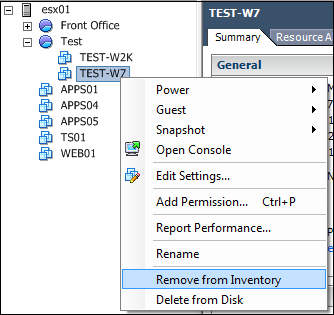
Just a quick post on how to remove VMs from the VMware inventory and add them again with the same configuration settings from the command line with PowerCli.
Here are the main steps:
- Get current configuration settings:
- VMX file path
- Folder / Location
- Resource Pool or VM Host
- Stop the VM
- Remove/Unregister the VM from the inventory
- Register/Add the VM to the inventory
- Start the VM
And here are the scripts:
Register with a Resource Pool
$VMList = 'computer1','computer2','computer3'

Get-VM -Name $VMList |ForEach-Object -Process {

$Name = $PSItem.Name
$ResourcePool = $PSItem | Get-ResourcePool
$Folder = $PSItem.Folder
$VMXFile = $PSItem.ExtensionData.config.files.vmpathname

#You can remove the -Kill parameter if your VMs are healty
Stop-VM $PSItem -Kill -Verbose -Confirm:$false

$PSItem | Remove-VM -Confirm:$false -Verbose

New-VM -VMFilePath $VMXFile -ResourcePool $ResourcePool -Location $Folder -Verbose

Get-VM -Name $Name | Start-VM -RunAsync -Verbose
}
Register with a VM Host
$VMList = 'computer1','computer2','computer3'

Get-VM -Name $VMList |ForEach-Object -Process {

$Name = $PSItem.Name
$VMHost = $PSItem |Get-VMHost
$Folder = $PSItem.Folder
$VMXFile = $PSItem.ExtensionData.config.files.vmpathname

#You can remove the -Kill parameter if your VMs are healty
Stop-VM $PSItem -Kill -Verbose -Confirm:$false

$PSItem | Remove-VM -Confirm:$false -Verbose

New-VM -VMFilePath $VMXFile -VMHost $VMHost -Location $Folder -Verbose

Get-VM -Name $Name | Start-VM -RunAsync -Verbose
}
 itluke.online